Why Your In-Game Store Is Slow: Google Play Billing Tips
Why one game's payment sheet takes 4 seconds and another's about 1, plus Google Play billing tips for faster stores and fewer failed payments.
In this article4 sections
A mobile game’s revenue comes mainly from in-app purchases and ads. For IAP, all kinds of monetization modules and techniques matter. But if payment is very slow or often fails at the moment the player goes to pay, the deal falls apart at the last step, and all the earlier work goes to waste. This article uses Google Play billing as the example and explains in detail how to optimize in-game payments.
Make the payment sheet open faster
Most in-game purchases are impulse buys. The urge lasts only a moment. Once it passes and the player calms down, they start asking whether they really need the item, whether it’s good value and so on, and the purchase dies before it happens. That makes the path from tapping “buy” to paying critical to get right.
First, a bad example. Check your own game: is this what happens when a player taps to buy?
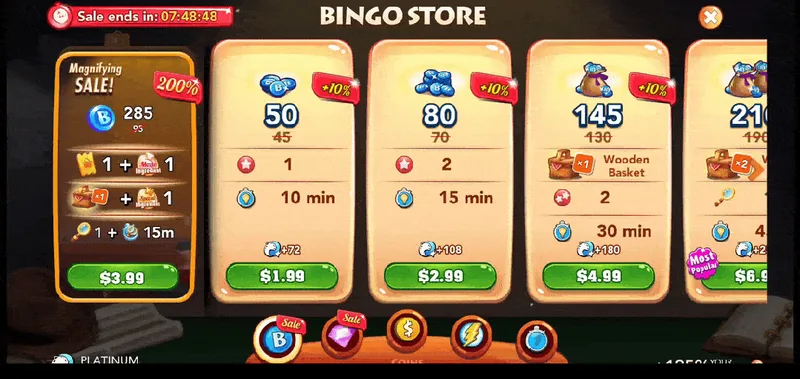
In the game above, it took 4 seconds from tapping the IAP item to the payment sheet actually appearing. As a number, that may seem fine: not especially long, and acceptable.
Now compare a top-of-the-class example:
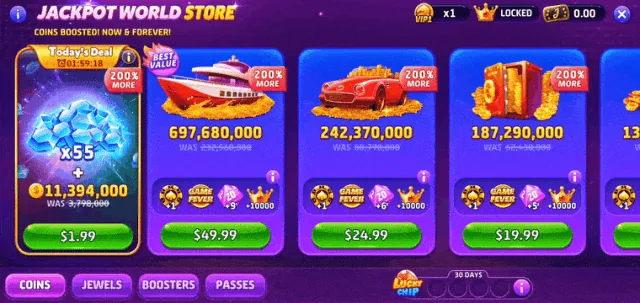
In this game, it took under 2 seconds from tapping the IAP item to the payment sheet appearing, about 1 second in practice. It feels almost instant.
Both cases above were on a fairly good connection. If the player’s network jitters even slightly while paying, the payment sheet takes a very long time to open or does not open at all, which is certainly not what any developer wants. Most of the time between tapping an IAP item and seeing the payment sheet goes into three steps:
- Initialize the connection to Google Play
- Query product details
- Launch the purchase flow
Initializing the connection is the precondition for any payment. Querying product details looks up a product’s price, stock and other information by its product ID; since each country has to show its own currency, this step is very important. Launching the purchase flow sends the purchase request to Google, and once that succeeds, Google opens the payment sheet automatically.
The difference between the two experiences above comes mainly from the first two steps. To make sure nothing goes wrong with payments, the payment plugins that ship with most engines send a careful request to Google at nearly every step. That avoids errors, but it costs speed. We suggest these optimizations:
- Initialize the connection to Google Play as soon as the game opens
- Once the connection succeeds, immediately request the details of all products in one batch and cache them locally
- When the player taps to pay, go straight to step 3 and launch the purchase flow
This gets the payment sheet open as fast as possible. Caching can cause some problems, but refreshing the cache asynchronously on a timer solves them completely.
Make the store open faster
Again, start with a bad example:

In the game above, it took nearly 5 seconds from tapping the store button to the product information actually showing.
And the top-of-the-class version:
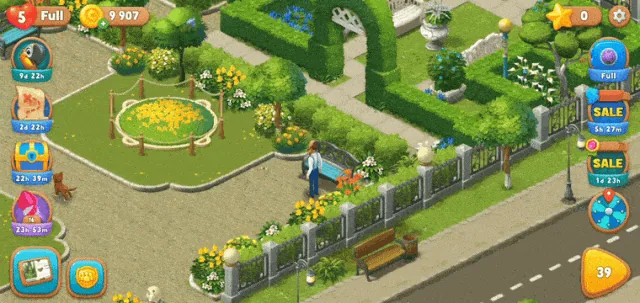
The whole process takes under 1 second, close to instant.
Opening the store roughly involves these steps:
- Ask the game server which products and promotions to show
- Initialize the connection to Google Play
- Query product details
- Load the product information and the image and animation assets it needs
Recommended approach:
- Ask the game server for the products and promotions to show as soon as the game opens
- Once the product information arrives, immediately initialize the connection to Google Play, request the details of all products in one batch and cache them locally
- Preload all the image assets the store needs into memory ahead of time
That way, the store opens almost instantly when the player taps it. If you need to push a promotion to specific players during play, just refresh the store information and load its assets again right after the push.
Check for undelivered purchases
Even with every step of the payment flow confirmed as carefully as possible, players’ devices and conditions vary enormously, and problems of every kind will always come up. One of them needs particular attention: you have to check the list of undelivered purchases, meaning cases where the player paid successfully but the item never arrived in the game.
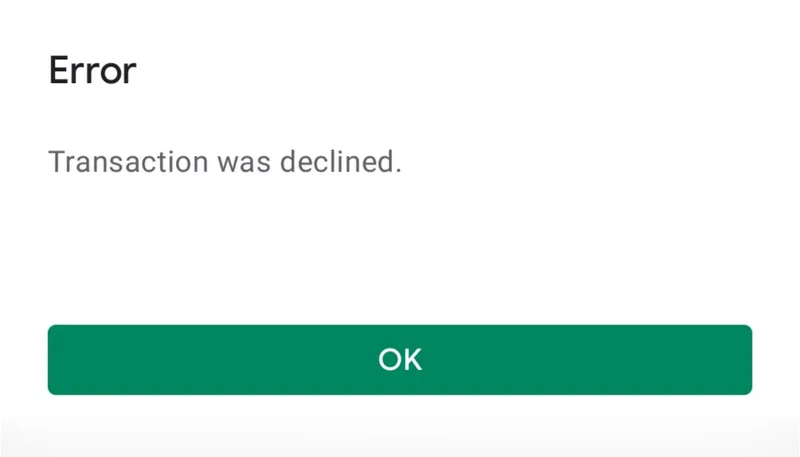
Recommendations:
- Check for undelivered purchases every time the game opens
- Also check at certain fixed moments, such as opening the store or tapping an IAP item, so nothing slips through
Common causes of failed payments
Developers should log and report every payment failure code and message on the client, which helps check whether the payment flow is working properly. These are the common causes of failure:
- The product ID is not configured in the store. This is very common, especially on iOS: new IAP items there have to pass review, and teams often forget to submit one for review
- There is an unprocessed order. As described above, undelivered purchases have to be handled first
- Payments are not available in the player’s region. This is uncommon; it mainly happens when a player in some country downloads the game and tries to pay after that country has been unchecked in the Google Play Console
- The game has been taken down
- If the game is in internal testing, the Google account of everyone who needs to pay must be added in the Google Play Console before payments work
- If the player did not download the game from Google Play, the game’s signature must match the one on Google Play, or payment will fail
Those are the optimization tips for the in-game store on Android (Google Play). iOS has a lot in common with it; we won’t go into it here, and you can make the matching optimizations yourself.